

- Joined
- Jan 31, 2016
- Messages
- 1,373
- Likes
- 2,969
- Portables
- 6
Several times over the past few months, I have had AutoDesk Fusion partially break. Everything works except 2 things: Save, and Export. Specifically, when I have this issue, I can open up the save popup, but I cannot click it. Everything else in fusion appears to work but these 2 very important and very specific functions; I can still view and edit every aspect of the model, but I cannot save it.
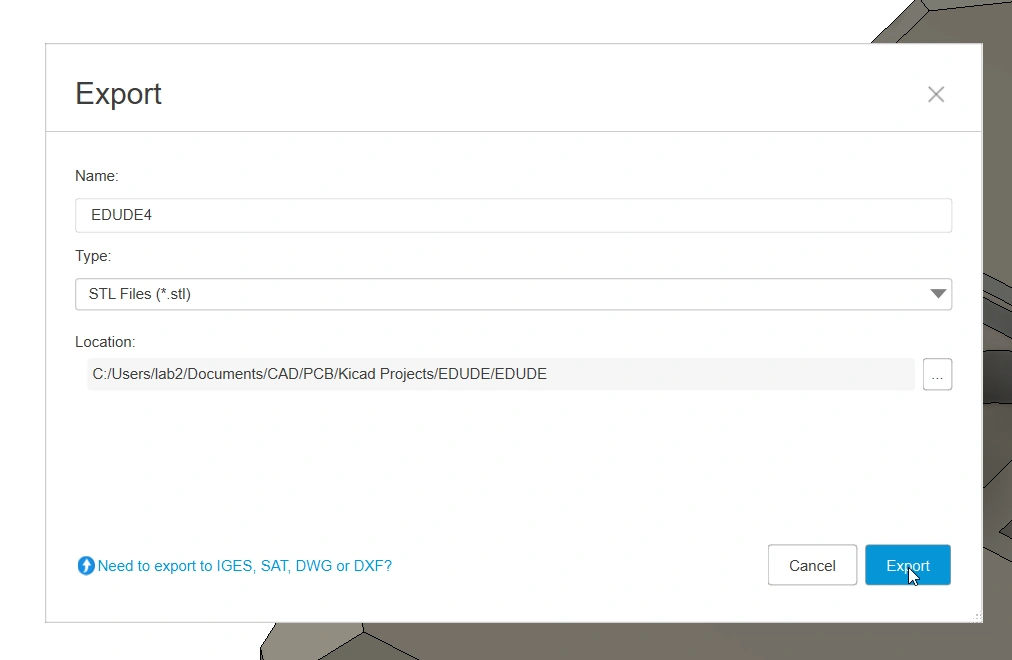
Here is an example. It looks normal, but the save function does not work. Every time I have scoured the internet for solutions, but have not found anything. This has been a brutal bug that has made me have to start over models many, many times. I do not know what causes it. Fortunately, I have found an emergency solution or workaround to be able to save if you encounter this dire circumstance.
SOLUTION
Step 1: In Fusion, open text commands panel by pressing
This will open a command box below your timeline
Step 2: In the very right hand corner, there should be 3 check boxes. Check the one next to "Py"

Step 3: Paste the following into the command into the box (the one below the bigger white box, to the left of the 3 checkboxes)
The text
Step 4: Open your file browser and navigate to the following path. You can paste it into the bar at the top
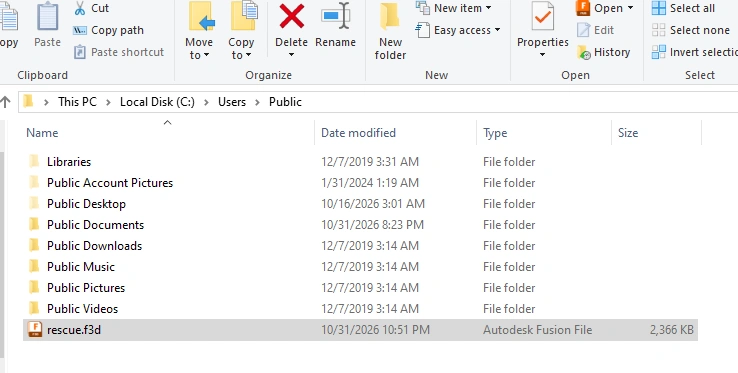
Your file should be there, called "rescue.f3d". If you changed the directory in the previous command, it will be in that location.
Optional Step: If you are paranoid like me, you can also export it as a .STEP file as well, just in case, with the following command.
Go to the same directory as step 4, and rescue.step should be there as well. Like with the f3d export, you can change the directory and file name.
Thought I'd share something I spent hours googling and could never find when I needed it. To any one in the future who finds this through a google search, I hope this solves your problem.
Here is an example. It looks normal, but the save function does not work. Every time I have scoured the internet for solutions, but have not found anything. This has been a brutal bug that has made me have to start over models many, many times. I do not know what causes it. Fortunately, I have found an emergency solution or workaround to be able to save if you encounter this dire circumstance.
SOLUTION
Step 1: In Fusion, open text commands panel by pressing
Code:
Windows: Ctrl+Alt+C
Mac: Cmd+Option+CStep 2: In the very right hand corner, there should be 3 check boxes. Check the one next to "Py"
Step 3: Paste the following into the command into the box (the one below the bigger white box, to the left of the 3 checkboxes)
Code:
import adsk.core, adsk.fusion; d=adsk.fusion.Design.cast(adsk.core.Application.get().activeProduct); em=d.exportManager; em.execute(em.createFusionArchiveExportOptions(r'C:\Users\Public\rescue.f3d'))C:\Users\Public\ can be replaced with pretty much any folder/directory/location of your choice. Mac users will need to change the directory to one of their choice, such as /Users/Shared/rescue.f3dStep 4: Open your file browser and navigate to the following path. You can paste it into the bar at the top
Code:
C:\Users\PublicYour file should be there, called "rescue.f3d". If you changed the directory in the previous command, it will be in that location.
Optional Step: If you are paranoid like me, you can also export it as a .STEP file as well, just in case, with the following command.
Code:
import adsk.core, adsk.fusion; d=adsk.fusion.Design.cast(adsk.core.Application.get().activeProduct); em=d.exportManager; em.execute(em.createSTEPExportOptions(r'C:\Users\Public\rescue.step'))Thought I'd share something I spent hours googling and could never find when I needed it. To any one in the future who finds this through a google search, I hope this solves your problem.

