It’s been nearly two months since I began this build, and I’m happy to declare it as finished! Here’s the story behind my journey to get here:
SECTION 1: BACKGROUND KNOWLEDGE
With the Wii, Xii-Strip, and PMS2 confirmed working, the next step was getting to work assembling the Xii-Boy’s carrier PCBs. These are the backbone of the project. They handle all the connections and routing between the five 4 Layer Technologies boards, keeping everything modular and wire-free. Here are the five PCBs used in the Xii-Boy Ultra:
- Main PCB (XBU-001)
This PCB is the board all other PCBs connect to. It handles and routes the following:
- RVL-PMS2
- RVL-AMP
- PMS-PD3
- Battery Holders
- PCM Circuitry
- Power Connections to the Wii (pogo pins, later changed to PicoLock)
- Trigger PCB Connector
- Wii Xii-Flex Connector
- Xii-DD PCB Connector
- Fan Connector
- Wi-Fi Module Connector
- Bluetooth Module Connector
- Volume and Brightness Buttons
- Power and Bluetooth Buttons
- Left and Right Trigger Buttons
- Headphone Jack
- LED Status Light
- Xii-DD (XBU-002)
This board is for routing video connections and keeping the display physically in place. It also takes the signals from the Controller PCB and sends them to the Main PCB.
Routes:
- RVL-DD
- Controller PCB Connector
- Main PCB Connector
- Controller PCB (XBU-003)
The Controller PCB also fastens into the top shell like the Xii-DD. It primarily acts as a breakout board for the GC+2.0, handling buttons, sticks, and rumble. It also takes the audio output signals from the RVL-AMP on the Main PCB and routes them to the speakers.
Routes:
- GC+2.0
- Xii-DD Connector
- Left Joystick and Right (C-Stick) Connectors
- Left and Right Speaker Connectors
- Rumble Motor Connector
- Start Button
- Trigger PCB (XBU-005)
This board goes in the very bottom of the shell. It’s only there for the triggers and Z buttons. The triggers use Switch Joy-Con joysticks which are screwed into the shell, and the Z bumpers are held by the Trigger PCB itself. The trigger system enables dual-press analog triggers with a digital switch at full depression. It’s a really creative solution to such a unique problem.
Routes:
- Main PCB Connector
- Left and Right Trigger Connectors
- LZ and RZ Bumper Buttons
- Xii-Strip (XBU-006)
I’ve already showcased this one in the initial post, but I’ll mention it again. This board takes all the voltage rails from the Wii’s tantalum capacitors and routes them to a single, convenient location. This is perfect for a simple connection to the Main PCB. It also has a thermistor between the Broadway CPU and Hollywood SoC.
Routes:
- Power Connections to the Wii (pogo pin receivers, later changed to PicoLock)
- Thermistor (for temperature sensing)
As you may have noticed, there are a ton of connections happening there. That also means there are a ton of steps that can go wrong. Sadly, when assembling your own PCBs it’s very much a “connect everything, triple check, and hope it works first try” kind of build rather than a “test along the way” one. The Xii-Boy Ultra is a modular build that’s easy to make modifications to and replace parts on, but that’s only really helpful once the initial testing phase is complete.
At bare minimum, the following must be working for the Wii to output anything to the display using the RVL-DD setup:
- Power Rails:
- Solid power connections from the Batteries → PCM → RVL-PMS2, which splits into required voltage rails:
- GND, 1V, 1.15V, 1.8V, and 3.3V
- These then travel over PCBs and FPCs to the Wii, PMS-PD3, RVL-DD, and the 3.5” LCD.
- USB Data Path for RVL-DD Flashing (Initial setup only):
- MicroSD with Bitstream → PMS-PD3 → Wii USB port → RVL-DD
- Required to flash the FPGA bitstream over the Wii’s DI (Data In) and CK (Clock) lines.
- Video Signal Routing:
- From Wii GPU output vias to the RVL-DD:
- V0–V7: 8-bit parallel video data bus
- CS: Color Select line
- 54: 54MHz video pixel clock
- SDW and SCW: i2c data lines
- Display Connection:
- An undamaged 3.5” LCD connected to the RVL-DD.
SECTION 2: PCB ASSEMBLY
So with all that in mind, I got my soldering tools, PCBs, parts, and assembled everything board-by-board. I started with the trigger PCB, as this one has the smallest connectors, and is a good warmup. My first mistake was trying to use only my soldering iron. The fine-pitch ZIF connectors were a nightmare - it took ages to get clean solder joints without bridging. If you want to watch my suffering, here’s the video - sped up to 6x speed for your convenience:
After the Trigger PCB was finished, I decided to switch over to my Hot Plate (UYUE 946C) and Solder Paste (TS391AX) - both of which I had never used before. In an ideal world, someone assembling these PCBs would use a
PCB Stencil to ensure the proper amount of paste is dispersed to each pad. However, they are expensive (especially for this many boards) and I opted out of them. That means I had to eyeball everything, and keep it straight when applying by hand.
That brings us to mistake #2 - using way too much solder paste. When I heated the board on the hot plate, the excess solder climbed the ZIF pins and bridged together. My next PCB was the Controller PCB, where my pasting looked like this:
And I was left with connectors like this:
…which is rough, to say the least. Thankfully, some solder wick helped me clean it up nicely
*.
https://youtu.be/A31eEKioIWI
*solder wick can easily pick up too much solder, so make sure all the pins pass the wiggle test afterward!
It took some practice, but after the Controller PCB was finished, I had a decent feel for the amount of solder paste needed. The next board was the Xii-DD, which only contained two ZIF connectors. However, there were also the largest ones so far, coming in at
18 and
40 pins!
Thankfully, everything went smoothly, and only minor touch up was needed. I installed the RVL-DD castellated module, and that board was good to go!
The final and most daunting PCB was the Main PCB. I can’t lie, I was sort of dreading it! I specifically didn’t want to mess with two really large ZIF connectors - a
40-pin and
50-pin! On top of this, they were extremely close together, and I knew any rework with a soldering iron risked melting them. There really wasn’t any alternative option, so I proceeded with the process.
Step 1 was to place solder and components for the PCM circuitry. This is a very important step, as otherwise power will not get from the batteries to the PMS.
Also, if the ICs (U4 and U5) are placed in the wrong orientation, you will severely damage the batteries. Here is the correct orientation:
(Note: Even though the components share the same footprint, they are not the same! Note the text on each.)
After that, I placed the pogo pins. I won’t go into detail on these, as I had quite a few issues and we later scrapped them in favor of PicoLock connectors.
Then came the volume, brightness, BT sync, and power buttons. I was worried they would melt when heating the board, but they did not thankfully. They slot through little holes in the PCB and fit really nicely. The LED was placed at the same time as well, but I didn’t apply enough solder and it later broke off.
The last things I placed were the three ZIF connectors. I placed these last because I knew they would be the most time intensive parts to redo if I accidentally bumped the board.
After everything was ready to go, I set it on the hot plate and let it work its magic. All the components came out pretty clean, only minor rework was needed. I just had to go extremely slow on those 40-pin and 50-pin connectors. Once I confirmed everything was to my liking, I soldered the rest of the components by hand. The battery terminals gave me so much trouble it’s not even funny. Don’t talk to me about them. They’ve already wasted 4+ hours of my life. Thankfully, I’ve complained to Xenii so much that he found better terminals for future builds. You’re welcome!
At this point, all that was left to do was install the 4 Layer Tech castellated modules and test everything! All of my connections looked visually solid, and things seemed bright…
SECTION 3: ISSUES - A LOT OF THEM
The first “issue” I encountered was pretty easily resolved. I tried to install the 40p Shielded FFC (XBU-007) but realized it would not fit at all. There just wasn’t enough clearance. However, Xenii informed me that I need to bend the flex 90° at the stiffener to make it work. This was gut-wrenching, but it did actually work. In hindsight, Xenii actually sent a long message with assembly tips, and that was the first tip. The second tip?
The silkscreen is incorrect, and I will cause issues if I insert the flex backwards. I have no idea how I missed this, but I did.
Unsurprisingly, when I connected everything together and powered on the console, nothing happened. I checked with my thermal camera and noticed it was very hot around the shielded flex cable. Inserting it backwards caused a direct short between GND and 3.3v.
Reversing the cable orientation solved the short, but that left me with an important question: Did the short damage any of the boards? That would be an extremely quick way to throw $300+ down the drain. To make matters worse, when I tried powering on again, I got heat on the Wii but no display or life. Also, the PMS-PD3 gave some very irregular readings and wouldn’t take any power with the ammeter.
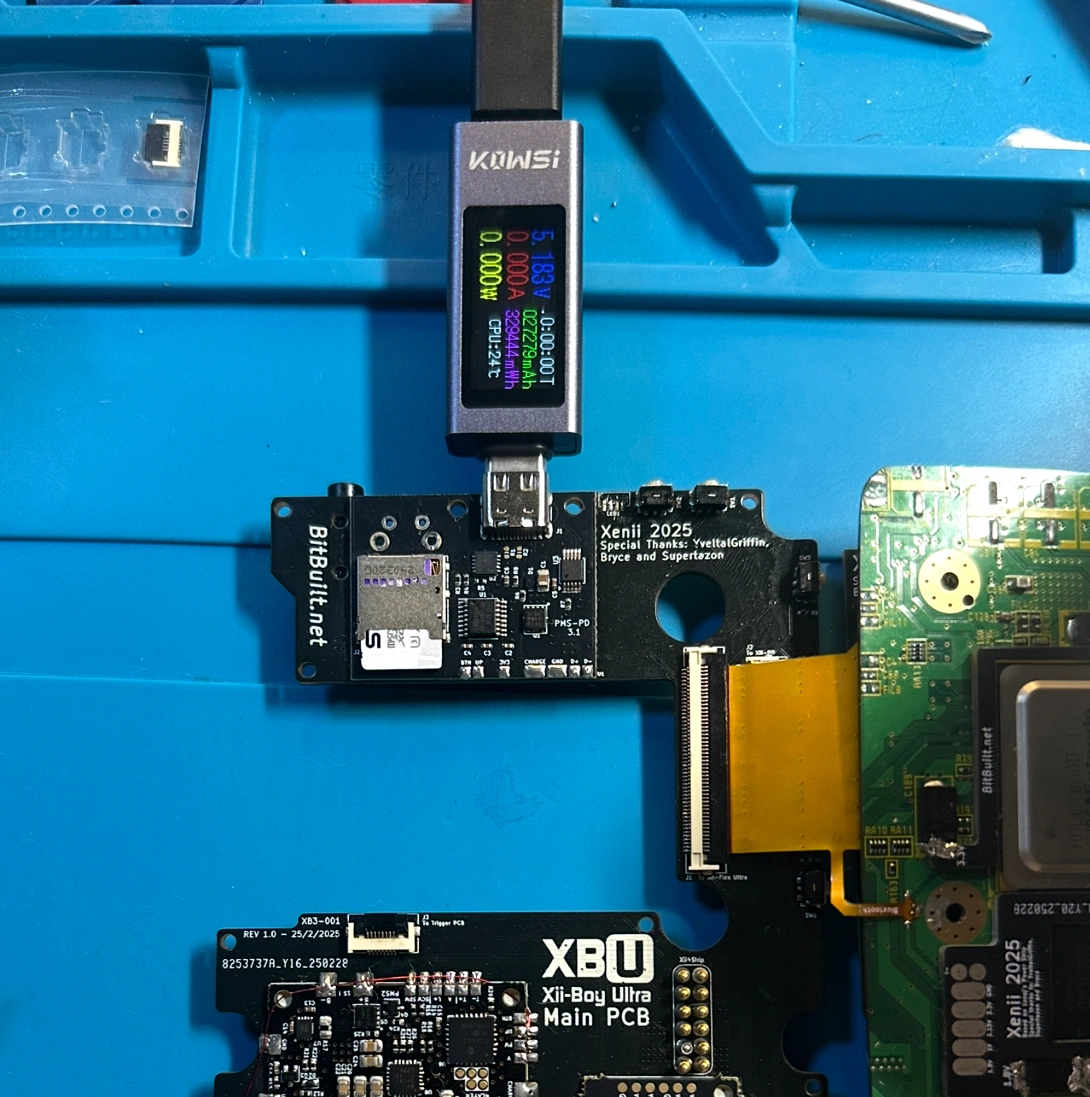
I took a short break and got back to testing. My biggest hope was that the PMS2 and the DD were still alive. I confirmed the PMS2 did output the correct voltages still, but the charging remained an issue. I could not test the DD. My next step was to wire composite video to the Wii and hope that it displayed. The DD will not work unless the Wii can read the Bitstream off of the USB Drive / SD Card at least once, so maybe the PD3 was just dead? Sadly, when using composite I still got no display, even though I confirmed the Wii was getting all the necessary voltages. Over the next few days, I performed quite a few more tests, to no avail. I declared the Wii dead, and to this day I don’t know for sure what killed it. The good news is that I solved the PD3 issue - because of the short amount of clearance with the footprint, the pads on the PD3 did not make a good connection with the Main PCB. This was solved by shifting the board higher up a bit and resoldering.
Since the Wii was (probably) dead, I had to get a new one. I searched around and found a Japanese Wii bundle for cheap. It was a white Wii, so I used the Wii Revision Checker
https://wii-revision.netlify.app/ (shameless plug, I know) to confirm it was suitable for portabilizing! When it arrived, I got to work trimming and wired power + U10 to the Main PCB. The results were depressing - power on the board, no composite video. Exactly the same issue as my last Wii. But then something interesting happened!
The issue on this board was the GND connection on the wire. It simply wasn’t making good contact. After this was sorted, it was full steam ahead!
SECTION 4: FINAL ASSEMBLY
The last step of this build was to put everything together and into the case! That is - if there are no other issues (spoiler alert: no build is ever this easy). So I started with the top shell and worked my way down. Everything on the top side went smooth for the most part - the only issue I ran into were the speaker connectors. They just wouldn’t fit, mine were too thick. After consulting with Xenii, we discovered that the manufacturer of the speakers decided to switch the connectors in the time between our builds. What are the odds? I was able to sand the edges and jam them into the connectors though, so it wasn’t a massive issue.
The next minor thing was the membrane on the face buttons. I couldn’t get a good fit, and it turns out the reason is that you need to trim the little box in the center. The buttons felt amazing after that.
I had two color choices for joysticks - white or black. My white ones were Hall Effect, but I heard there were compatibility issues with hall sticks and the GC+2. I liked black and it won the poll I made, so black it is.
The top was finished, and now I was moving on to the bottom half. For a testing setup, I just inserted the Main PCB and connected a battery, Wii, and top half. It booted, and I was able to get into a game! Unfortunately, all great things must come to an end, and I was met by constant crashes and freezes only minutes in. More on those later.
I then removed the Main PCB and started from the bottom. The first parts in were the Z buttons, triggers, and the Trigger PCB. When I got to the triggers, I quickly ran into the issue. In order for them to work for our intended use, we dissect the Joy-Con joysticks and remove an internal button. Then, we replace the stick head with a custom 3D printed trigger piece. I was having a ton of trouble opening the stick module - in fact, I even broke my tweezers. Turns out that I had the wrong variation of joysticks. I tried all ten of them from my bag of spares and none were the correct model. Because of the whole tariff situation, I was unable to buy the correct ones on AliExpress too! Thankfully, after searching for an hour, I found a set on Amazon that seemed to be correct. They worked and were wayyy easier to take apart.
Here is the Amazon listing I used.
With that out of the way, I then installed the Wi-Fi and Bluetooth modules to the bottom of the Main PCB. After that, I modified the fan to use a PicoLock connector, placed it and the heat sink into the case, and applied thermal paste (Arctic MX-4). A copper plate is supposed to go overtop, but the one I had was too large. Apparently we couldn’t find one for sale with the dimensions required, so you have to order a large plate and trim it. My pair of Metal Masters made quick work of the plate.
Once that was in place, it was as simple as screwing all the boards in and putting buttons in place. I love how modular this build is, Xenii did a great job with putting a ton of polish on it. It’s very colorful on the inside too, I like it!
SECTION 5: TROUBLESHOOTING
The Wii booted, but was now instantly crashing. It wouldn’t last for a minute like it had before. Xenii mentioned he had these issues in the past and believed they were due to tension on the USB vias. I couldn’t get myself to believe that and investigated a bit further. Running jumpers to the USB lines didn’t help, so something else was up. After playing around for a bit, I noticed that if I was touching the Wii motherboard it would last longer. Interestingly, when I put pressure around the NAND, the Wii ran without issue. This all but confirmed that the issue lay in the pogo pins used for power. Some of them did not make a solid connection, and thus caused instability when the Wii momentarily lost a rail. In hindsight, several factors contributed to it being so bad on my build. We confirmed Xenii had the same issue, and the latest revision swapped to PicoLock connectors, so I won’t go in depth on them. I didn’t have any PicoLocks on hand (not that it would fit anyway) so I ran wires from the Main PCB to the Xii-Strip. This completely solved the crashing.
The next issue I wanted to address was the coil whine. The RVL-DD uses a system called Pulse Width Modulation (PWM) to control the display’s brightness. This requires sending a rapidly switching signal at a high frequency to adjust power. Unfortunately, the frequency set was high enough to produce a noticeable and irritating whine, yet still within the range of human hearing.
@Aurelio very graciously spent some of his time looking into this, and tuned the frequency to a much quieter value.
With that out of the way, there was another RVL-DD related issue I needed to solve. The display was flickering constantly, and was even starting to show some “burn-in” effects. My first assumption was a poor solder joint on a connector, but after testing I determined it wasn’t the case. I figured I should outsource this issue and take it to the experts. I asked
@YveltalGriffin and the answer turned out to be surprisingly simple:
He was 100% spot on. Following his advice, I changed the video mode from 480i to 480p and it resolved both the flicker and burn-in! I didn’t check previously because the settings were in Japanese.
I had a couple other minor issues, but I think the only one left worth mentioning is my GC+2.0. In order to use the analog triggers as intended, a firmware update was required. My issue was that I could not update my GC+ board no matter what I tried. The root of this issue actually was pretty interesting, but I won’t go into detail.
@Aurelio did an incredible job addressing it, and the issue should be solved for all future builds. Massive props to you Aurelio, you’re the man!
SECTION 6: SHOWCASE & UPCOMING
My Xii-Boy Ultra is complete now, and I couldn’t be happier! I will be enjoying some Mario Kart Wii on it often.
Here’s a video of a crazy Mario Kart comeback I had in an online game:
Coming soon, I hope to have a finished build guide available. If you choose to build one before the guide is finished, get in contact! It is really difficult to make a polished guide in general, let alone for a design that isn’t your own, on your first attempt. Some more photos would be really helpful. Look out for a guide release post soon!
SPECIAL THANKS:
-
@Xenii - Great friend, and the one who made this whole build possible. Thank you for all the support man!
-
@YveltalGriffin - Answering my silly questions all the time, and solving my flicker issues with only a few words.
-
@Aurelio - Listening to all of my complaints on tiny problems and finding fixes for them. You rock!



 (GND was wired the inside of the RCA cable). After fixing that, it successfully booted. This is probably the only time I’ve ever been happy to see an error screen.


